How to Set Up Two-Factor Authentication (2FA) on Every App That Matters
What Is 2FA, Really?
2FA (a type of MFA) adds a second step to your login, so even if someone has your password, they still can’t get in without another factor.
You log in with:
Something you know (your password)
Plus something you have (a code/app prompt/security key)
Google’s research found that adding a second step can stop 100% of automated bots and the majority of bulk phishing attempts (depending on the method).¹ CISA also says enabling MFA makes you 99% less likely to get hacked.²
Best Practice (Quick + Strong)
Prefer an authenticator app or device prompt over SMS text codes when you have the option. Device prompts and app-based methods generally hold up better against common attacks than SMS.¹
Common authenticator apps:
Google Authenticator
Microsoft Authenticator
(If you use Authy, note that Twilio ended support for the Authy Desktop app in 2024—mobile still works, but don’t rely on desktop going forward.³)
Step-by-Step: Turn On 2FA
Gmail / Google Account
Official instructions: Turn on 2-Step Verification⁴
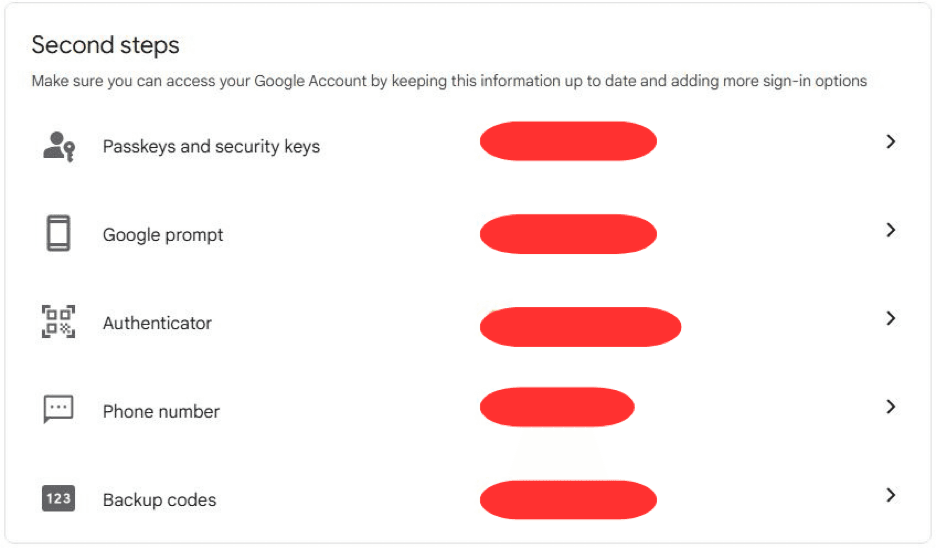
📧 Gmail / Google Account
Steps:
Open your Google Account settings
Go to Security
Under “How you sign in to Google,” select 2-Step Verification⁴
Click Get Started and sign in⁴
Choose a method (prompt/app preferred)
Follow the prompts to finish setup
Steps:
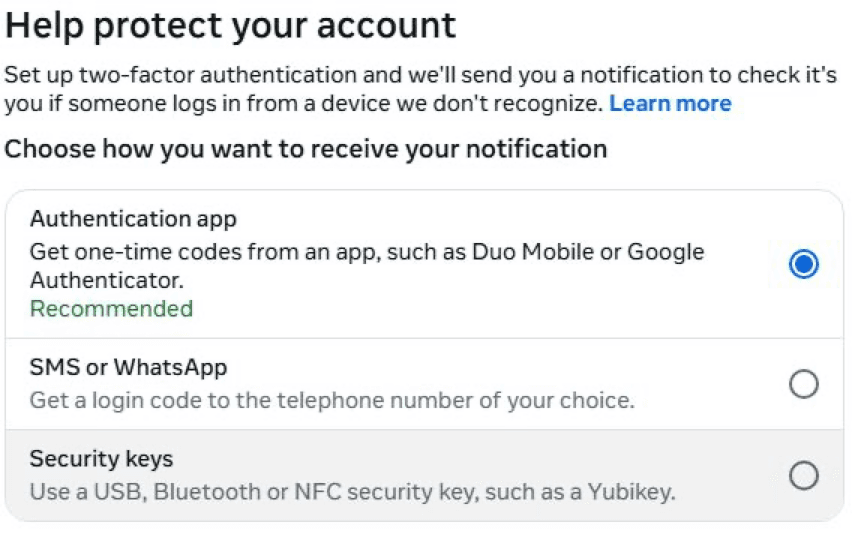
Open Facebook → Settings
Go to Accounts Center → Password and security⁵
Tap Two-factor authentication⁵
Choose your method (authenticator app preferred)
Confirm and finish setup
Steps:
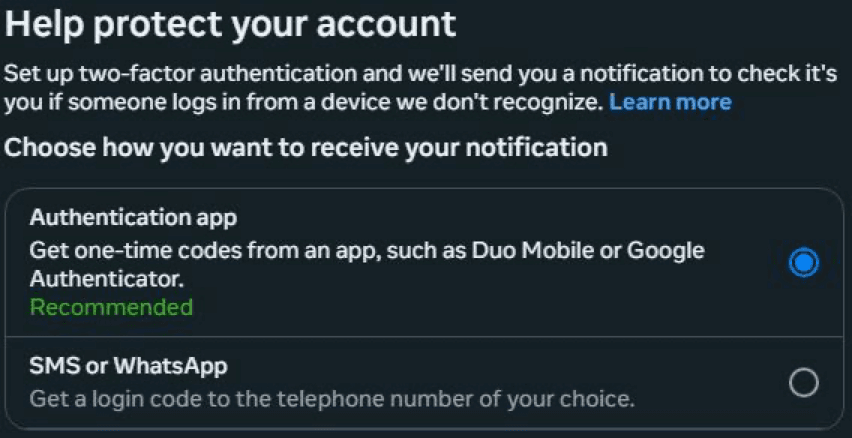
Instagram → Settings
Accounts Center → Password and security⁶
Tap Two-factor authentication⁶
Choose Authentication app
Confirm and finish setup
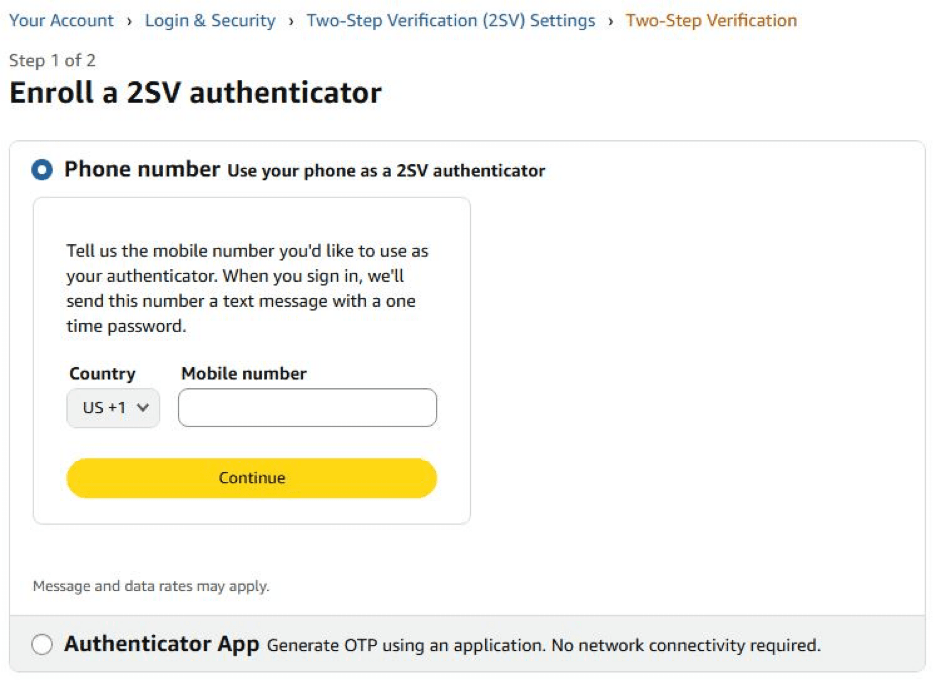
🛍️ Amazon
Steps:
Log into Amazon
Go to Your Account → Login & security⁷
Find Two-Step Verification (2SV) and select Edit / Get Started⁷
Follow the prompts to add your method (app or SMS)
Confirm it’s active
Other Platforms to Cover:
- Twitter / X
- LinkedIn
- Apple ID
- Microsoft / Outlook
- Banking apps (Chase, Capital One, etc.)
- PayPal / Venmo
- Dropbox, Discord, Reddit
Backup Plan (Don’t Skip This)
Set up at least one backup method so you don’t get locked out if you lose your phone:
Save backup codes (if the platform provides them)
Add a second method (e.g., app + device prompt) where possible
Store backup codes in a password manager (not Notes, not email drafts)
Final Checklist
2FA enabled on email (first)
2FA enabled on banking + payments
2FA enabled on socials
Backup codes saved securely
Authenticator app installed and working
Sources
CISA — Multifactor Authentication (“99% less likely to be hacked”).
Twilio Help Center — Authy Desktop End-of-Life (March 19, 2024).
Facebook Help Center — How two-factor authentication works on Facebook.
Instagram Help Center — Securing your Instagram account with two-factor authentication.