How to Check if your Info Was in a Data Breach
Step 1: Use a trusted breach checker
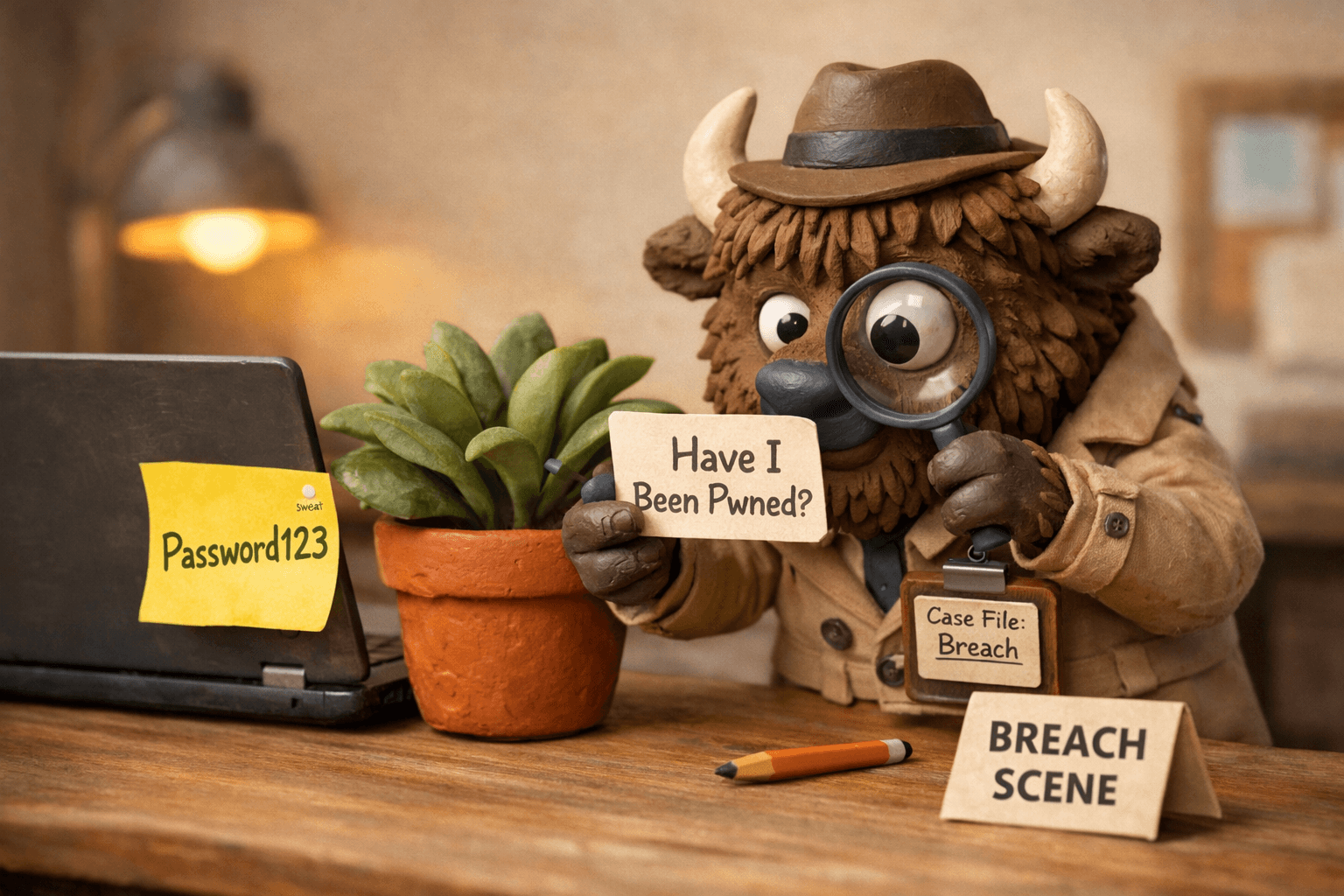
Start with HaveIBeenPwned.com
How to check:
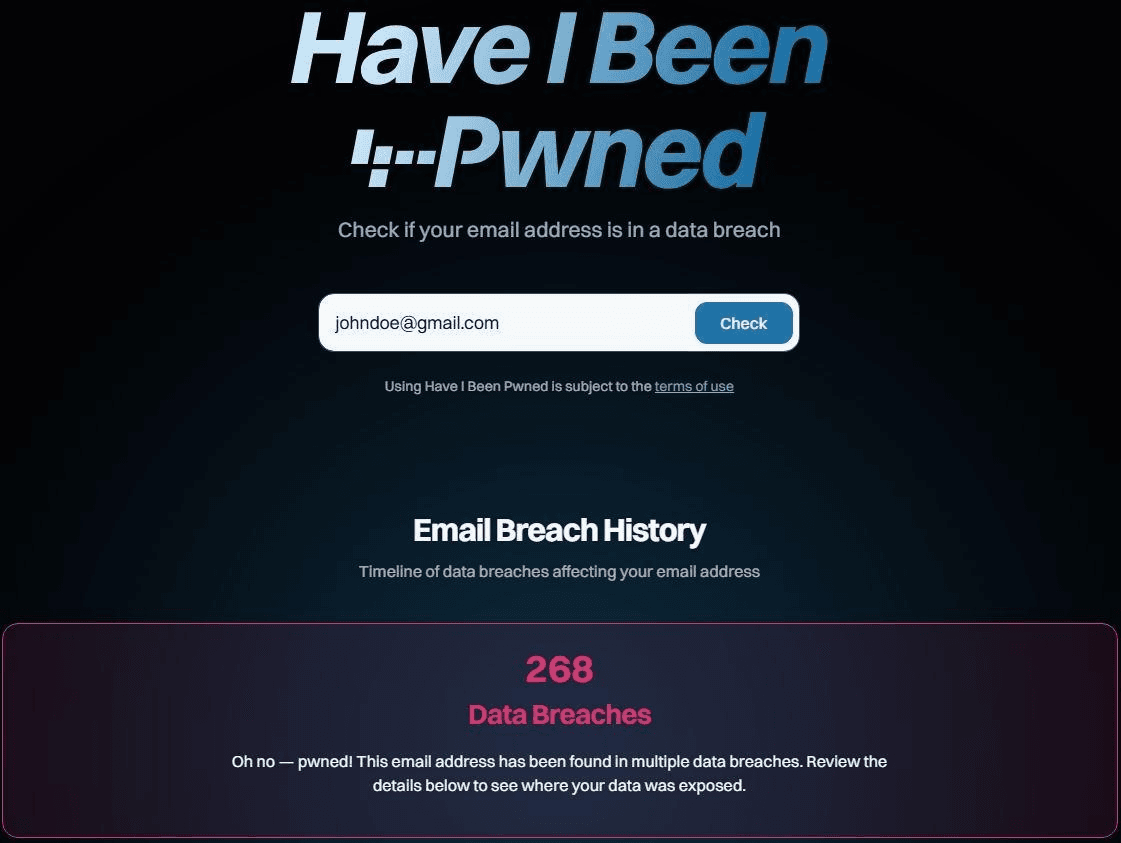
Go to HaveIBeenPwned.com
Enter your email address (or phone number, if supported)
Press Enter / Search
Review the results page
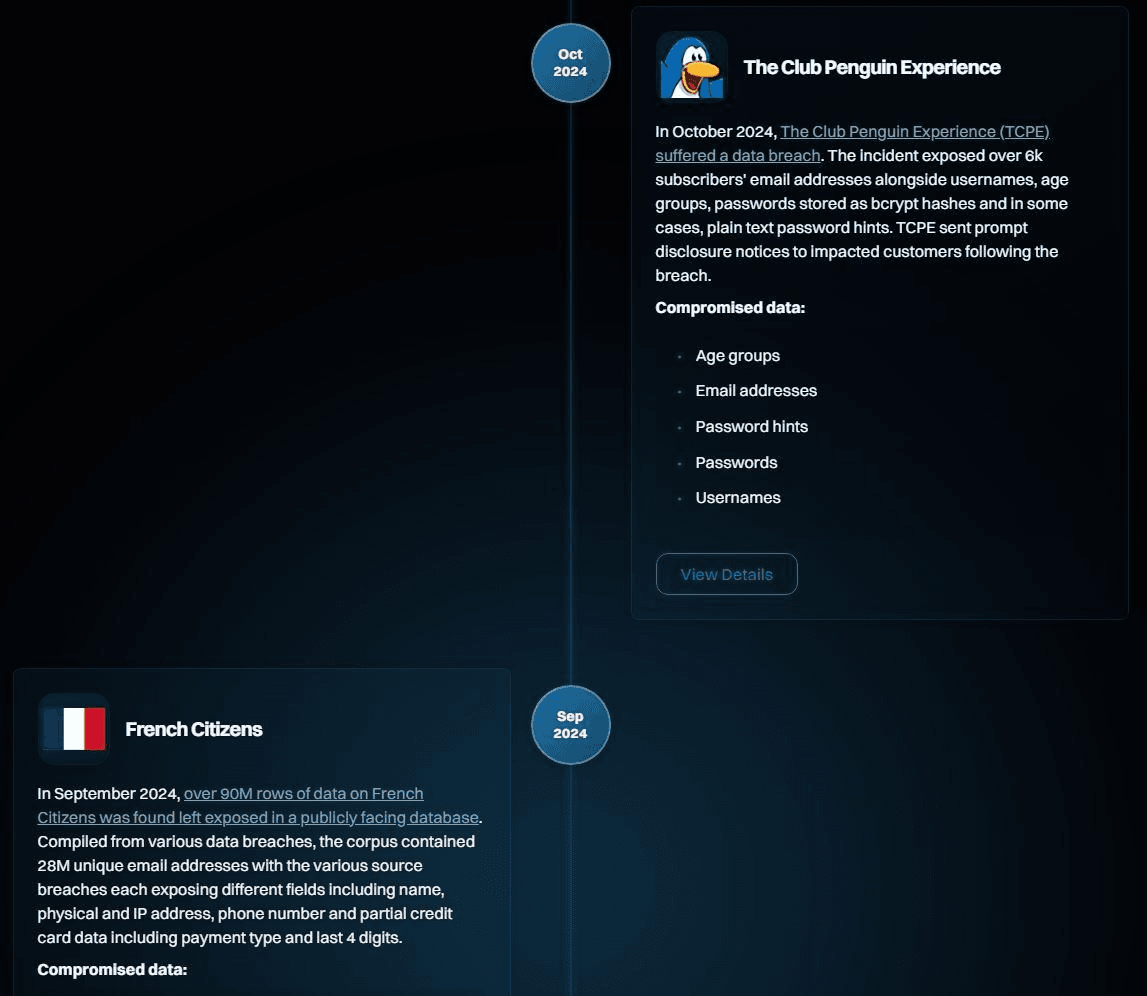
What the results mean
Red banner = Your info appeared in one or more known breaches
Green banner = No matches found (helpful, but not a guarantee)
Breach list = Which services were breached and what data types were exposed (email, password hash, phone number, etc.)
Quick note:
Even if you get a green result, you can still be at risk from phishing, data brokers, or breaches not yet added to databases.
Step 2: Take action if you were found in a breach
If your info shows up, do these in order:
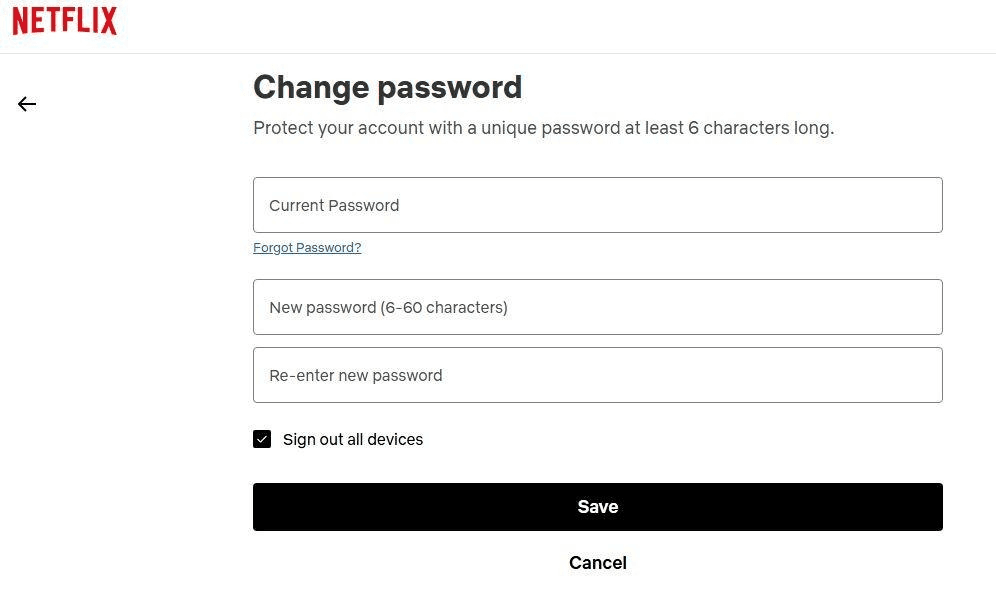
Change your password (starting with the affected account)
If you reused that password anywhere else, change those too—immediately.
Use a long, unique password (a password manager makes this painless).
Turn on two-factor authentication (2FA)
Enable 2FA on the breached account and on your email account (your email is the “master key” to password resets).
Check for password reuse
Same password on multiple sites = one breach can unlock multiple accounts.
Prioritize: email, banking, social media, shopping, and any account with saved payment methods.
Clean up old accounts
If the breached service is something you don’t use anymore (old forums, legacy apps), consider deleting the account.
If deletion isn’t possible, change the password and remove personal/payment info.
Step 3: Monitor for weird activity
For the next few weeks, keep an eye out for:
Phishing emails pretending to be from the breached company
Password reset emails you didn’t request (check spam/junk too)
Login alerts from unfamiliar devices/locations
Charges or new accounts you don’t recognize
Optional but smart:
Sign up for breach alerts (HaveIBeenPwned lets you register your email for future notifications)
Pro tips
Use a password manager so every account gets a unique password
Don’t click password reset links from suspicious emails—go directly to the site/app
Enable login alerts wherever possible
If your email was exposed, consider upgrading your email security (strong password + 2FA + recovery options reviewed)